How to Setup Google AdSense Payment – Wire Transfer
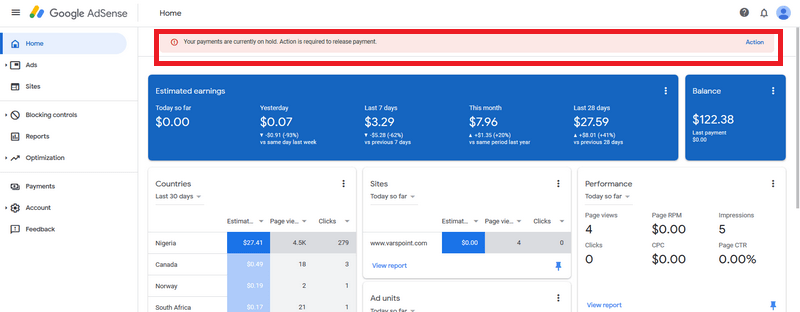
There is a threshold limit for setting up a payment method, Once your earning have gotten to the limit, you will get a notification via email and on the Google AdSense account (when you log in) letting you know that your payment is on hold because there is a step you need to complete.
See image screenshot below:


- Go to Google AdSense Log In Page.
- Click on the “Actions” or click on “Payments” at the left side of the page.
- Then click on “Add Payment Method”.

4. From the image below you could see that I have TWO payment method to select from, remember; it depends your locations and currency too.

For the purpose of this tutorial on the Google Payment method, we are looking at Wire-Transfer Method. So select the “Add new wire transfer details”.
5. Fill the form and double check every details to ensure its correct before submitting.

Name On Bank Account: This is your bank account name. Ensure that the name tallies with your bank name, although payment will still be successful on Google’s side, your bank may not agree to approve the money if the name Google said they paid to doesn’t tallies, even when the account number is correct.
Bank Name: This is the name of the financial institution (Bank) you own an account with. Preferably ensure that the write the Bank name in full (avoid abbreviation of bank name), because locally, the abbreviation is known but Google or its payment institution may not understand that.
SWIFT BIC: A SWIFT Code is a standard format of Bank Identifier Code (BIC) used to specify a particular bank or branch. That is why every wire transfer gets to you after the transferred money is sent to your bank and your bank already knows that Google intends to send the money to the listed account number/name. SWIFT codes comprise 8 or 11 characters. All 11 digit codes refer to specific branches, while 8 digit codes (or those ending in ‘XXX’) refer to the head or primary office.
Account Number: Ensure that the account number tallies with the currency Google is paying into your account. Sometimes mistakes could occur.
6. Click on the “Save” button to complete and implement your Google AdSense payment settings.
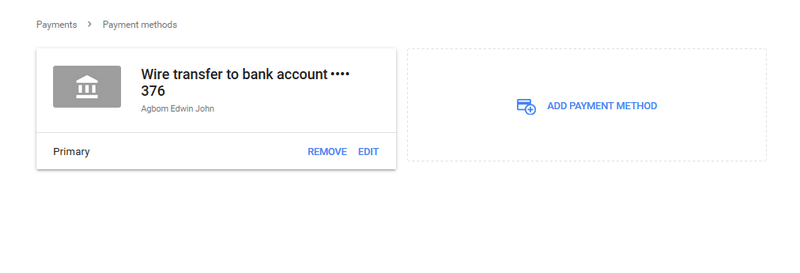
So at this point, you’ll see that your account is set and ready to start receiving your Google AdSense earnings directly into your Bank account.
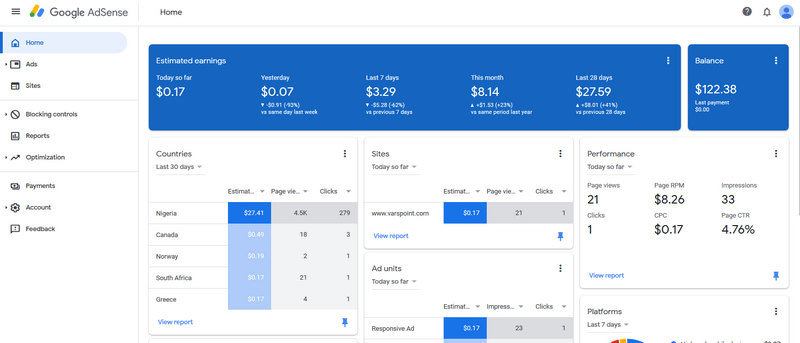
Also, the notification disappears after a little while or immediately you save your settings.
Note: The same step is required to add more wire transfer details. But always remember to assign which one becomes your primary bank account.
Why you don’t have to fill the “Intermediary bank” option:
The Intermediary Bank option delays your payment because when your Bank head Office gets your payment, it takes an extra day to send money to your branch (where you opened the account).
But in this case, the SWIFT BIC already indicates the Bank that will receive your earning and the account holding that owns the money, all are indicated and better option to get paid fast.
How To Receive Google Adsense Payment With GTbank Nigeria
- Login to your Google Adsense Dashboard
- Click on Menu and then scroll to Payments
- Click on Payment
- Under how you get paid, click on Add new payment method
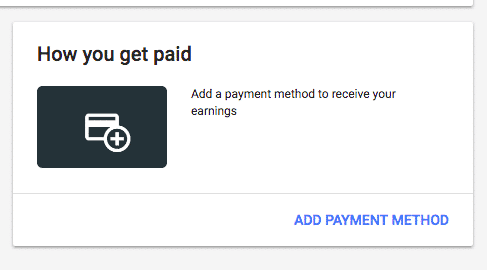
Under add payment method in the new page, tick wire transfer
Fill the details below based on the bank details you want use.
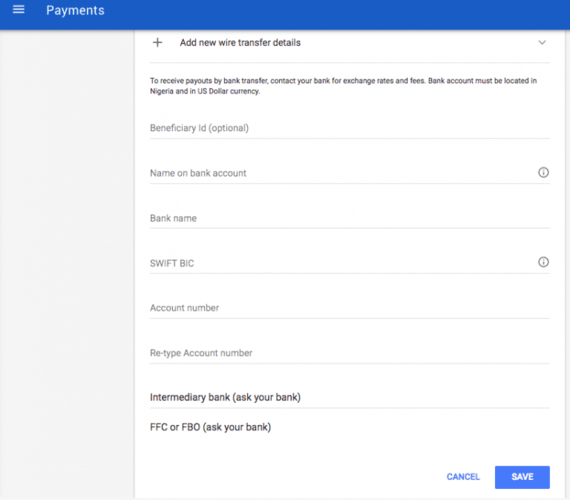
Supply your GTBank account details in the fields provided:
- In the “Beneficiary ID” field, Leave It blank
- In the “Account holder name” field, simply enter your account name.
- In the “Bank Name” field, simply type in “Guaranty Trust Bank PLC, Nigeria”
- Just type “GTBINGLA” where you are to supply your SWIFT BIC information.
- Type your Bank Account Number in the “Account Number” field and retype it in the given space.
- Kindly ignore the options for ”Intermediary bank details” and “For further credit details”
- Tick “set this form of payment as primary”
- Click on the SAVE button to save your work.
That’s All, you are done.